
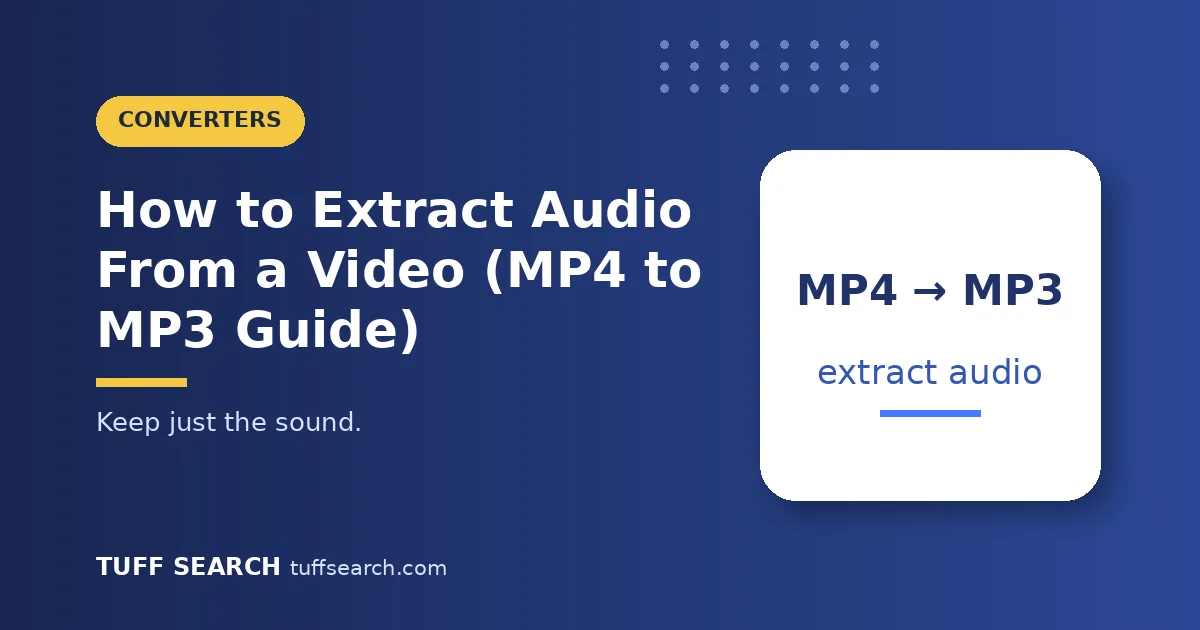
Sometimes the video does not matter — it is the lecture, interview, song demo or voice note inside it that you want to keep, replay in the car, or listen to offline. Learning how to extract audio from video takes about a minute once you know the route, and you do not need editing software to do it. This guide covers the free browser method, what quality settings to choose, and the desktop alternatives for very large files. The quickest option is our free MP4 to MP3 converter, which pulls the sound out of an MP4 and hands you a standard MP3.
Extracting audio is not really “ripping” anything mysterious. An MP4 file is a container holding a video track and an audio track side by side. A converter simply takes the audio track out and saves it in a format every music player understands — MP3. Nothing about the sound itself has to change, which is why the process is fast and the result sounds like the original. You will find this converter in the free online converters collection on TuffSearch with the rest of the media tools.
Extract Audio Online, Step by Step
- Open the MP4 to MP3 tool linked above in your browser — no installation, no account.
- Add your video file. Choose the MP4 (most tools also accept MOV, WebM and other common formats).
- Pick a quality setting. For speech, a mid setting is plenty; for music, choose the highest bitrate offered. The next section explains why.
- Convert and download. Save the MP3, give it a clear name, and it is ready for any player, phone or car stereo.
This route is ideal for the everyday cases: a recorded class, a meeting recording, a family video whose audio you want to keep, or a clip you filmed yourself. Because everything runs in the browser, it works the same on Windows, Mac and Chromebook, and you skip the risk that comes with installing random “free converter” programs, which are a classic source of bundled junk software.
Choosing the Right MP3 Quality
The one setting that matters is bitrate, measured in kilobits per second (kbps). Higher bitrate means a larger file and, up to a point, better sound. For spoken content — lectures, podcasts, interviews — 128 kbps is genuinely enough, because the human voice uses a narrow range of frequencies. For music, 256 or 320 kbps preserves more detail, especially in busy or bass-heavy recordings.
One honest warning: converting cannot add quality that is not there. If the video itself has low-quality, compressed audio, choosing 320 kbps just makes a bigger file with the same sound. The audio in most phone recordings and downloaded videos sits somewhere in the middle, so the high setting is a safe default for music and the mid setting a sensible one for speech. If you want the full picture, our companion guide on MP3 bitrate explains the trade-offs in depth.
Try it with your numbersMP4 to MP3 ConverterOpen calculatorWhen a Desktop Tool Makes More Sense
Browser conversion has one natural limit: very large files. A two-hour 4K recording can be several gigabytes, and uploading or processing it in a browser tab is slow and fragile. For files like that, a free desktop program such as VLC — which most people already have — can extract audio through its Convert/Save feature, working entirely offline. The workflow is a few more clicks, and the interface is less friendly, but it never chokes on file size.
A good rule of thumb: under a few hundred megabytes, use the browser tool for speed and simplicity. Above that, or when your connection is poor, go desktop. Either way the output is the same kind of file, so you can mix methods freely across different jobs without any compatibility worries.
A Quick Note on Copyright
Extracting audio from videos you made, recorded with permission, or own is completely fine — lectures you attended, your own performances, family recordings, and meeting notes are the classic cases. Downloading or converting other people’s copyrighted music and videos for redistribution is a different matter and can breach both copyright law and platform terms. Keep conversions for personal use of content you have the right to use, and you will stay on solid ground.
Once you have the MP3, a few small habits make it more useful. Name the file after the content — “Physics-Lecture-Week-4.mp3” rather than “audio_01.mp3” — and add it to a playlist or folder by subject, because a pile of unnamed audio files becomes unsearchable within a month. Most phone players also let you adjust playback speed, which makes extracted lectures and long interviews far easier to review at 1.25× or 1.5× without losing clarity. And if you only need part of a long recording, many phones and free editors can trim the MP3 afterwards in seconds, so you keep the five minutes that matter instead of the full two hours.
FAQs
Not if you choose a sensible bitrate. At 256–320 kbps for music or 128 kbps for speech, the MP3 sounds effectively identical to the audio track inside the original video for normal listening.
Usually yes. Most converters accept MOV, WebM, AVI and MKV as well, because they all store audio in a similar way. If a file is refused, converting the video to MP4 first almost always fixes it.
For your own recordings and content you have permission to use, yes. For copyrighted material belonging to others, keep any personal-use conversion within your local laws and the platform’s terms, and never redistribute it.